
Edit Campaign Name
Edit your campaign's name by accessing the All Campaigns screens.
Edit Campaign Details
Open the campaign dashboard of the campaign you wish to edit. Either select the “Edit Campaign” button dropdown located on the top-right corner, or click on the edit icon in the campaign overview panel.

Edit Budget & Duration
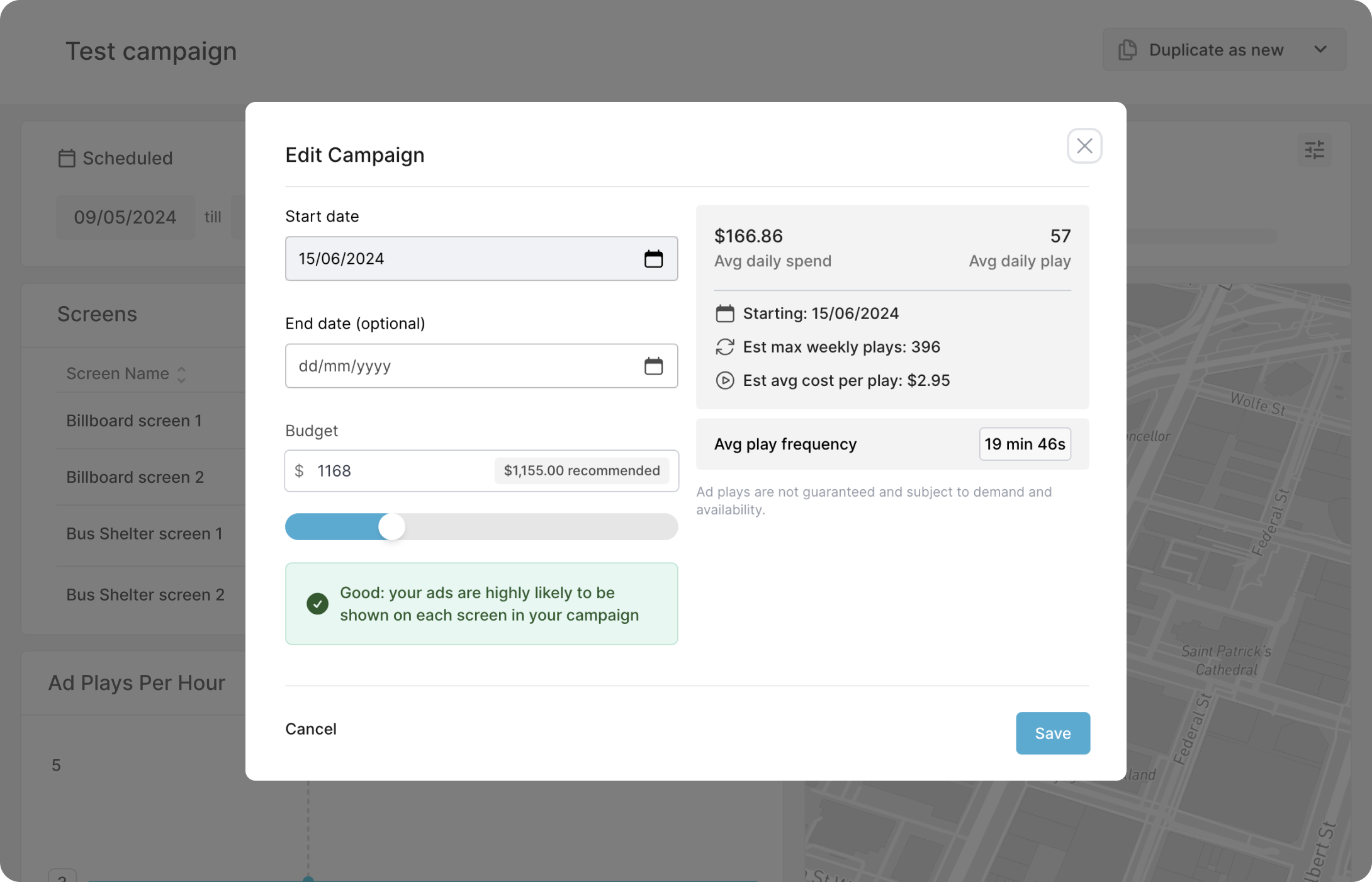
You have the flexibility to change both campaign budget and campaign duration. The panel on the right side allows you to see the changes these edits will make to your overall campaign. To confirm your selection, click the “Save” button on the bottom-right corner.
Editing Restrictions
To ensure that your campaign will still play at an affective rate, the budget will readjust to a recommended minimum based on how long a campaign is extended to.
Editing Creatives
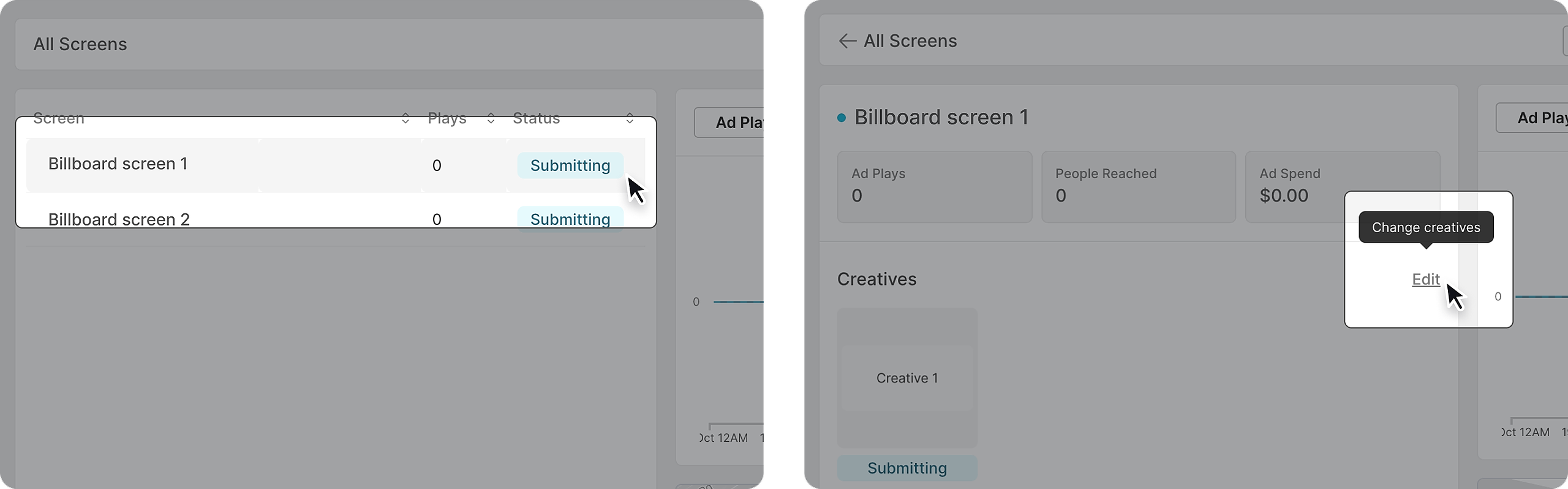
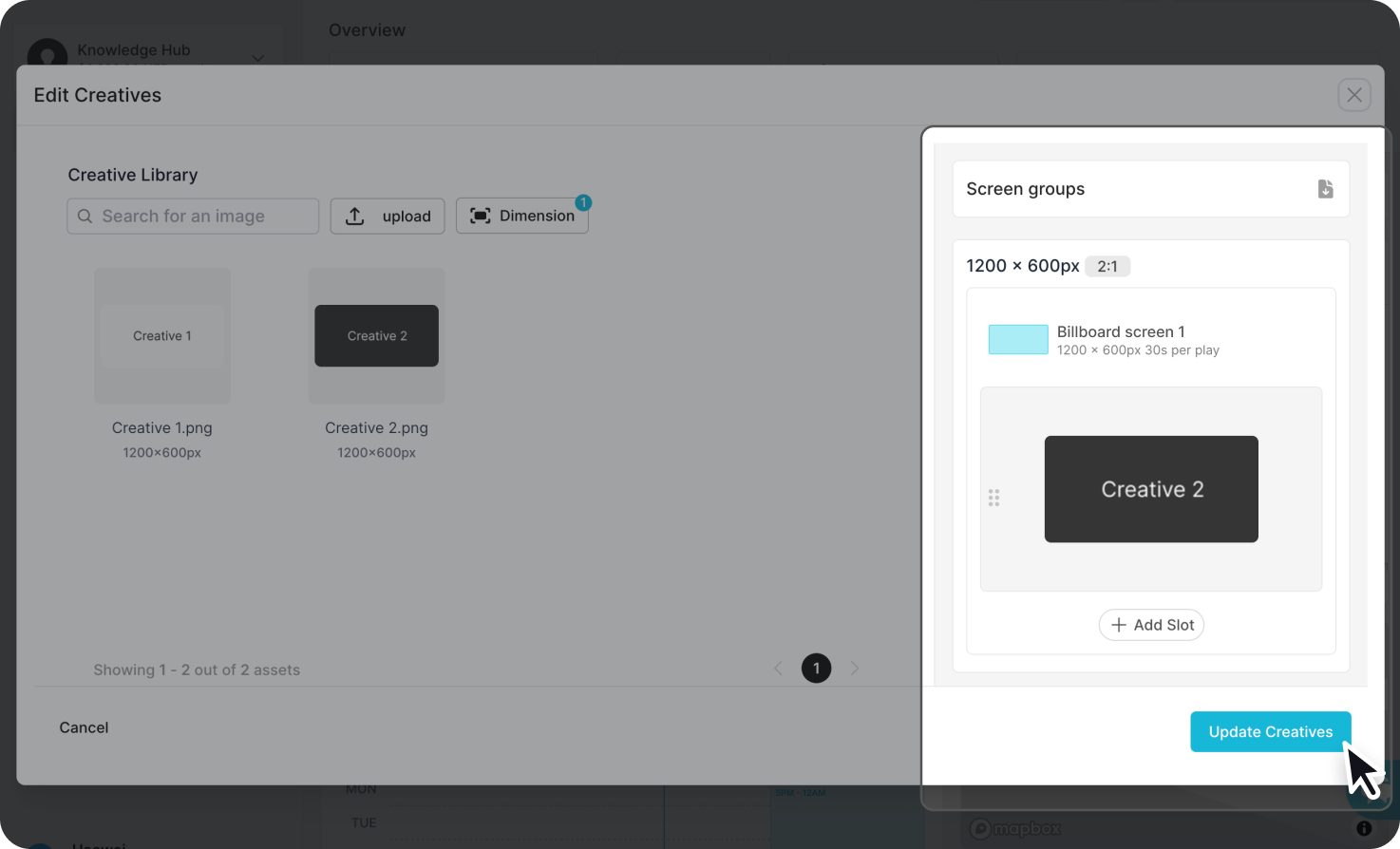
The edit creatives function can be found within each screen details page in your campaign. Simply select the screen that you want to change the creatives of, and click "edit".
Drag and drop your new creative into the slot. You are also able to add and remove slots to allow for multiple creatives.
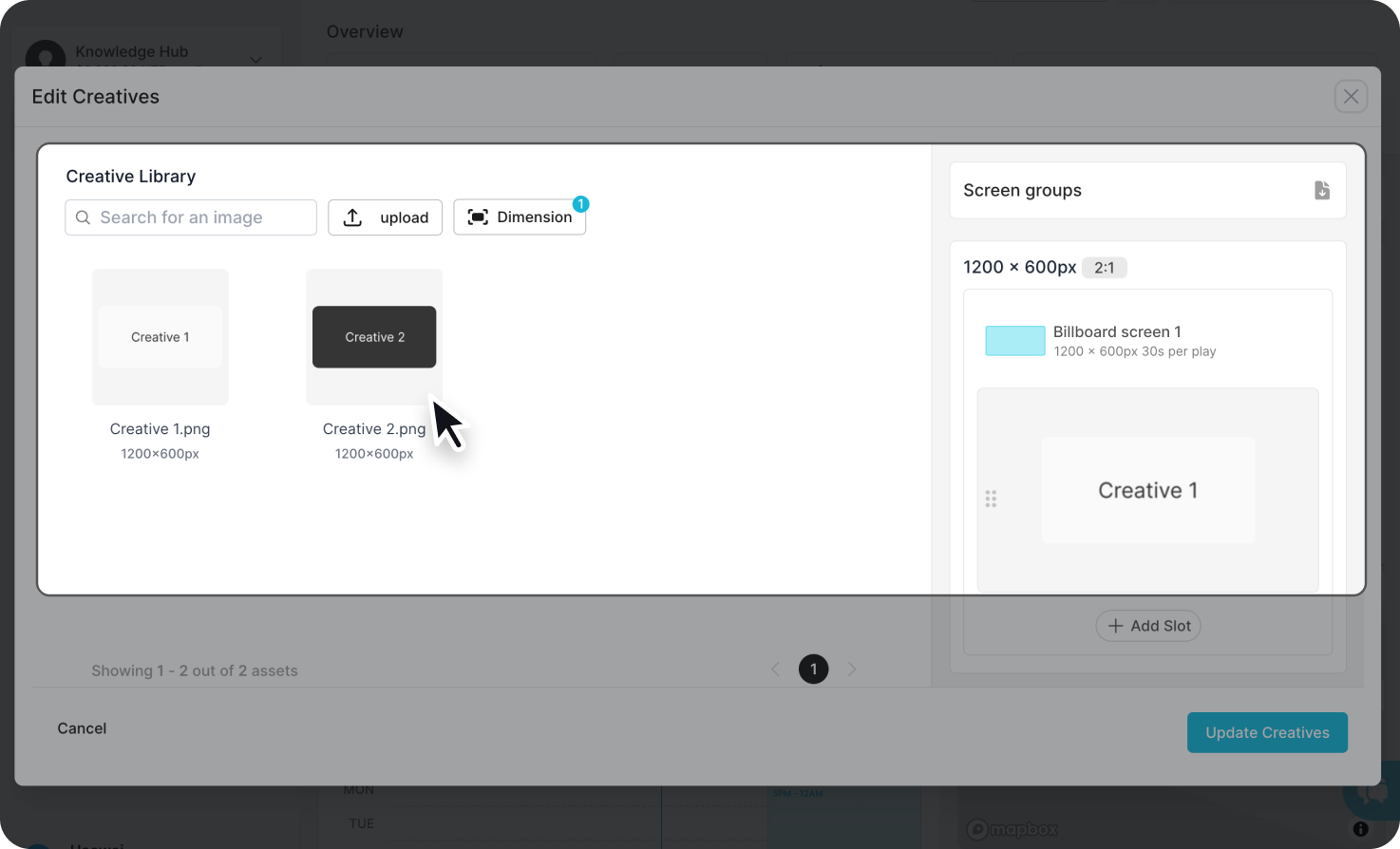
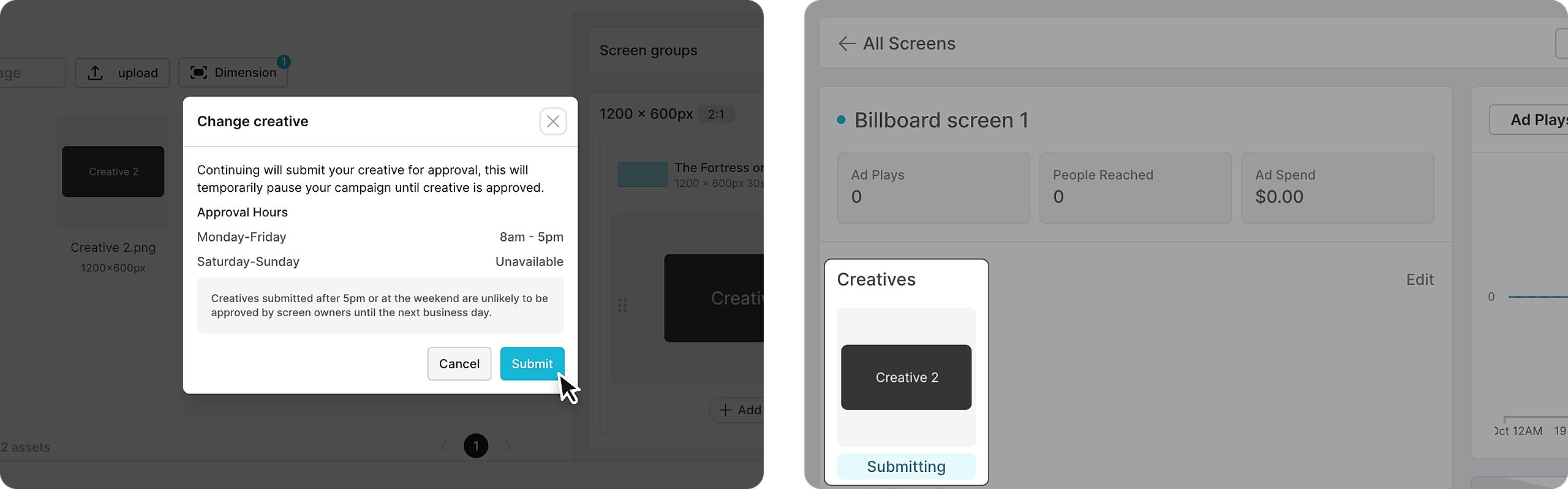
Once you are happy with the new creative, confirm by clicking "update creative".
Any new creatives added to a campaign will go through the approval process before it goes live. Once a creative has been swapped its status will be set as "submitting" until it is approved.
Note that approval times vary depending the time and day of the week.