
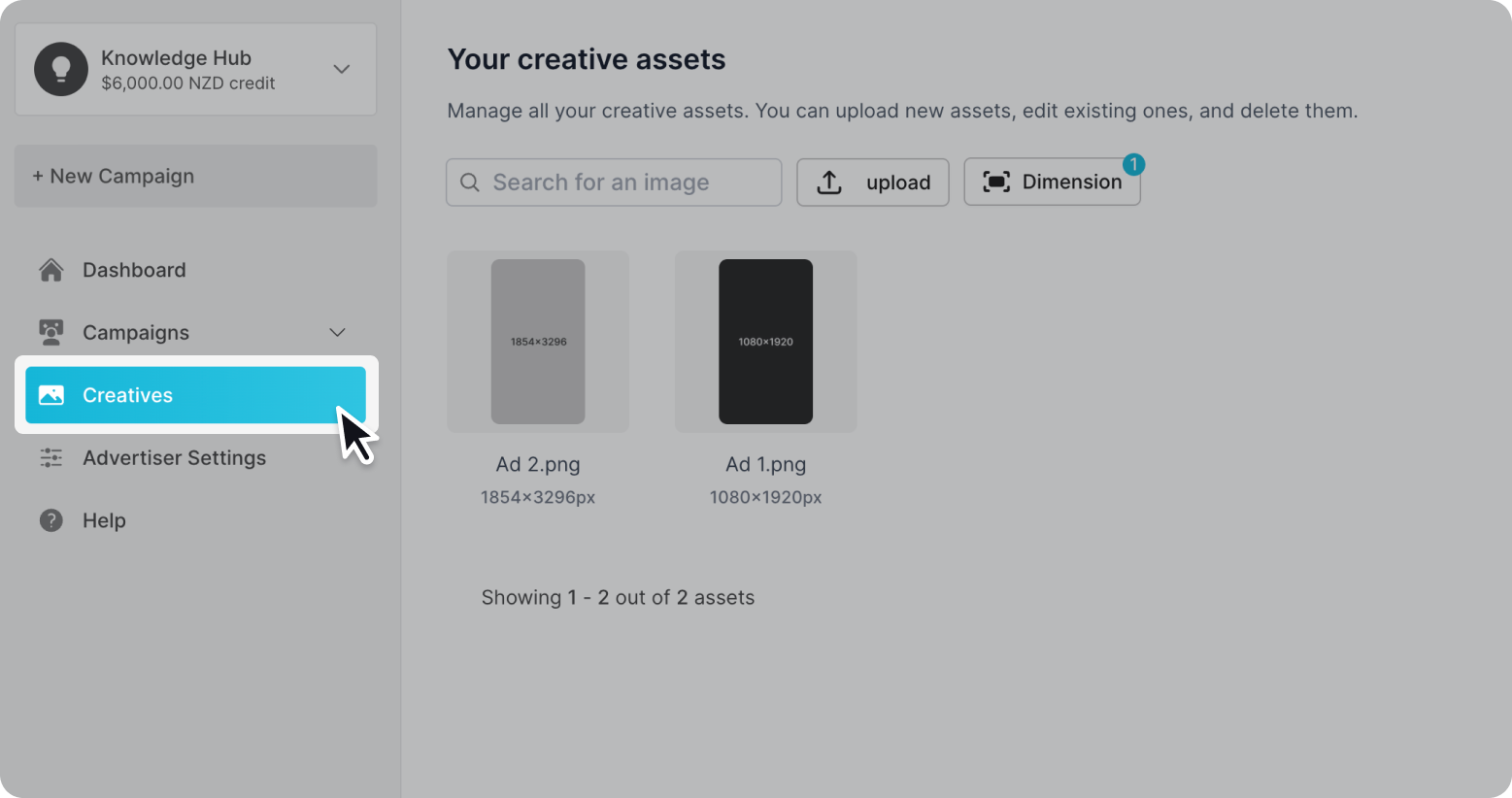
Asset Library
You can find the asset library on the left hand side in your navbar.
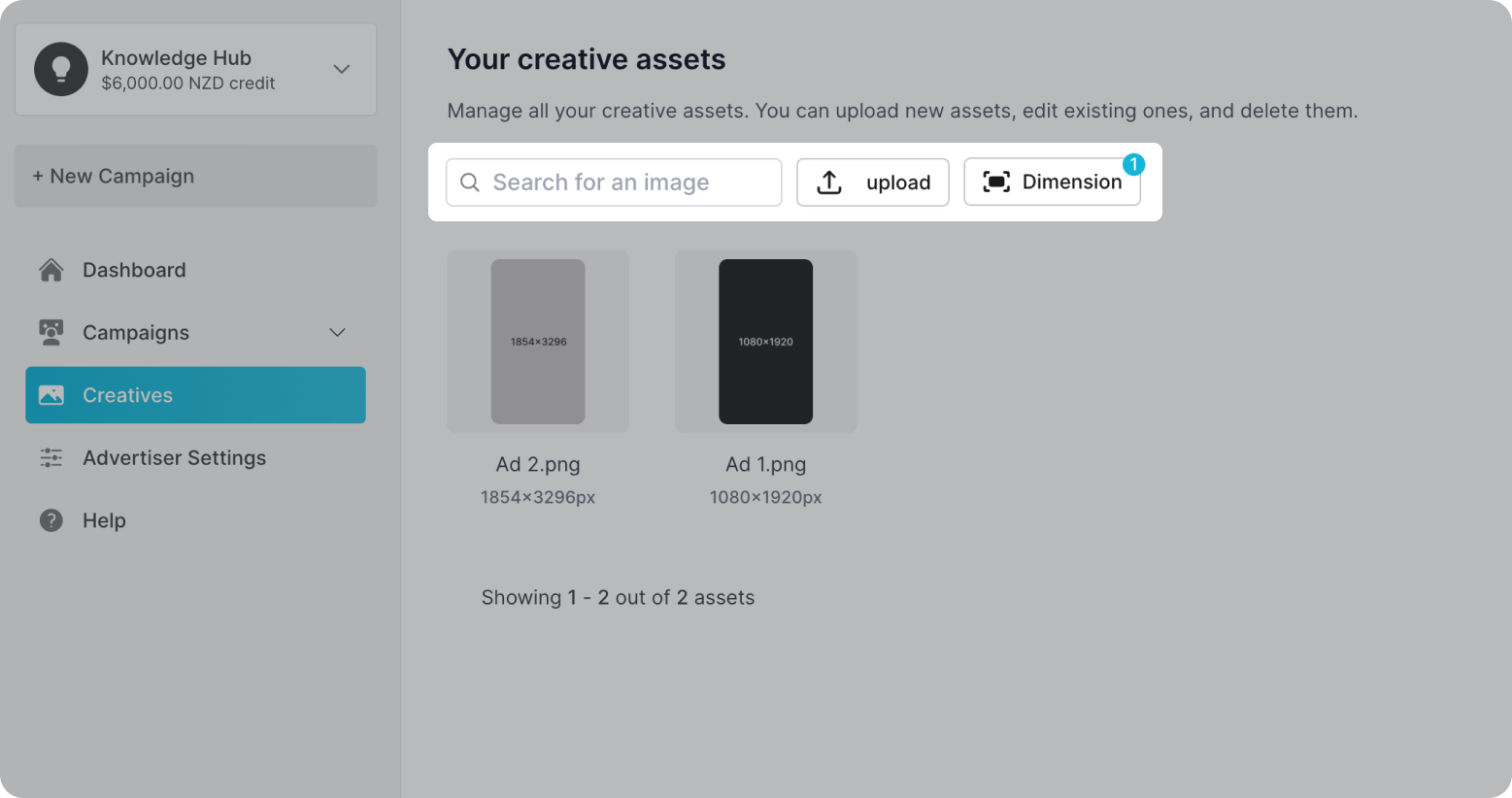
The top tool bar allows you to search for specific assets, upload new assets into the library, as well as filter for different creatives.
Asset Details
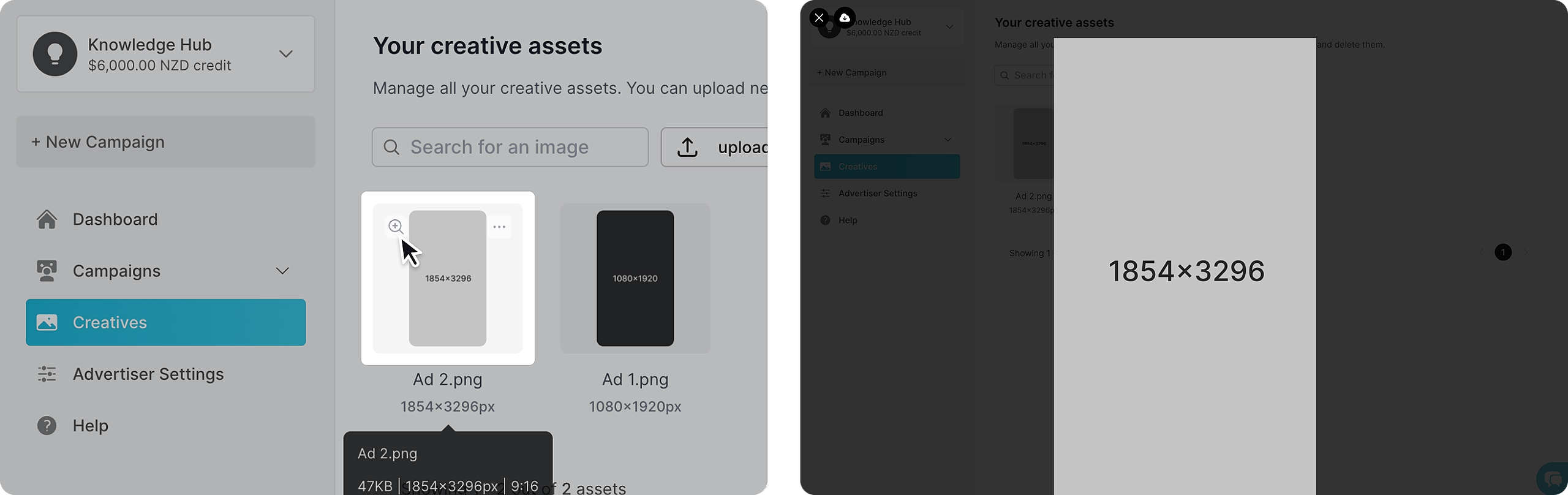
You can hover over an creative asset to preview its specifics. There are three main pieces of information displayed on hover A) file size, B) pixel dimension, C) aspect ratio.
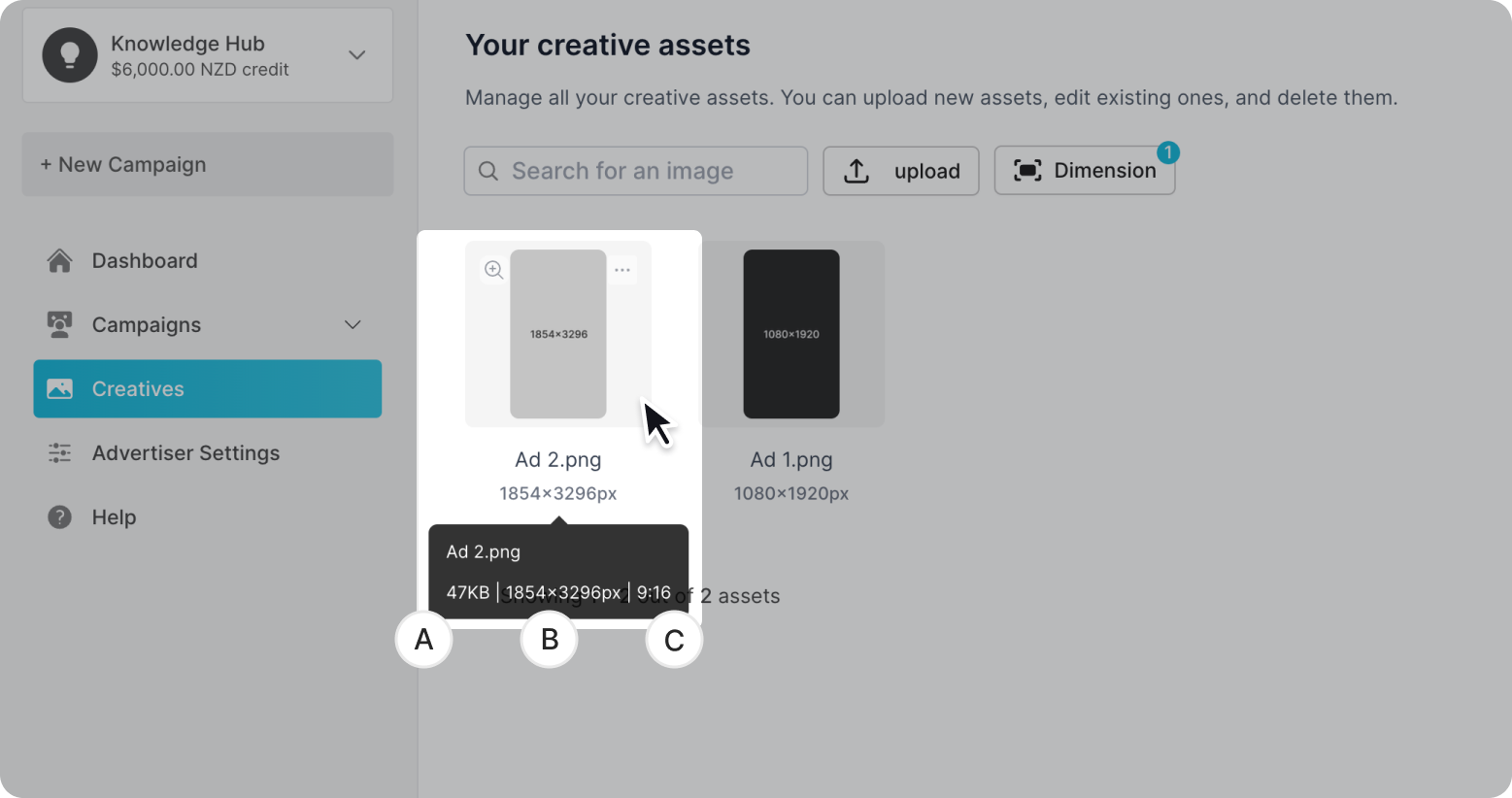
To view a larger preview of a creative asset, hover over the asset and click on the magnifying icon (located at the top left corner).
Managing Assets
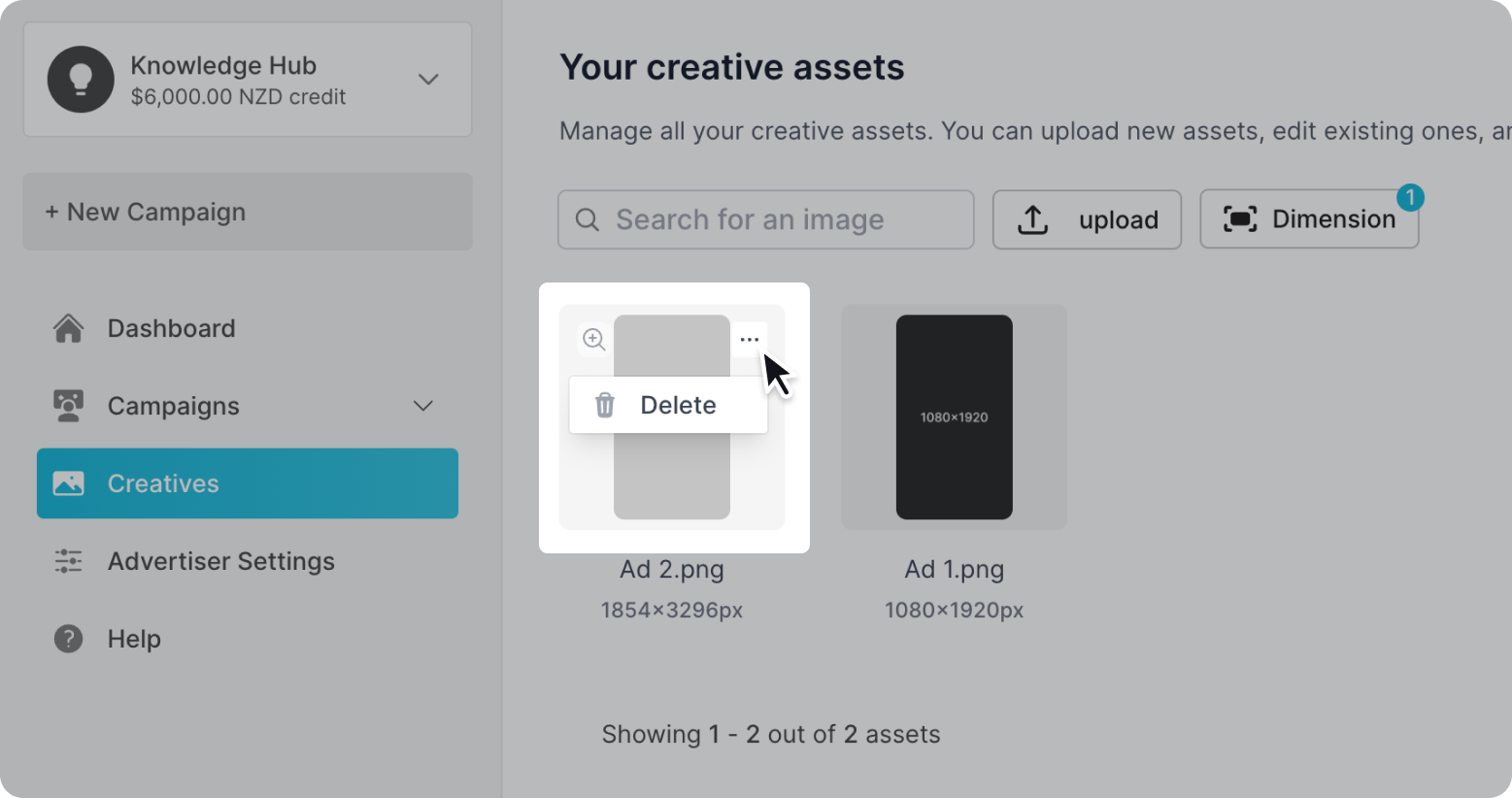
To remove any assets from your Creative Assets Library, hover over the asset and click on the three-dotted menu and remove the selected asset.